You haven't signed in yet, you can have a better experience after signing in
*Please complete the payment within {{receiveCouponInfo.expire_at}}Previous use*
You haven't signed in yet, you can have a better experience after signing in



Activity Rules
1、Activity time:{{ info.groupon.start_at }} ~ {{ info.groupon.end_at }}。
1、Activity time:cease when sold out。
2、Validity period of the Group Buying:{{ info.groupon.expire_days * 24 }} hours。
3、Number of Group Buying:{{ info.groupon.need_count }}x。
Please Pay Attention
1、Teamwork process: Join/initiate a Group Buying and make a successful payment - Within the validity period, the number of team members meets the activity requirements - Group Buying succeeded!
2、If the number of participants cannot be met within the valid period, the group will fail, and the paid amount will be refunded in the original way.
3、The number of people required and the time of the event may vary among different products. Please pay attention to the rules of the event.
Data recovery/partition management/backup and restore
Twenty years of meticulous development, multifunctional disk tool software!
data recovery
DiskGenius is a professional level data recovery software with exquisite algorithms, powerful functions, and a wide user base; Support file recovery and partition recovery in various situations, with good recovery results; Advanced features such as file preview, sector editing, encrypted partition recovery, Ext4 partition recovery, RAID recovery, etc. are all available, a masterpiece of 20 years of craftsmanship!
Safely and quickly recover data lost due to accidental deletion, formatting, partition damage, partition loss, virus damage, system crashes, and other unknown reasons on hard drives, portable hard drives, USB drives, storage cards, RAID, virtual disks.
Intelligent search algorithms can perform deep scans of disks and identify lost data; Regardless of the reason for the data loss, as long as it is not overwritten and there is still residual file information, it can be found and restored normally.
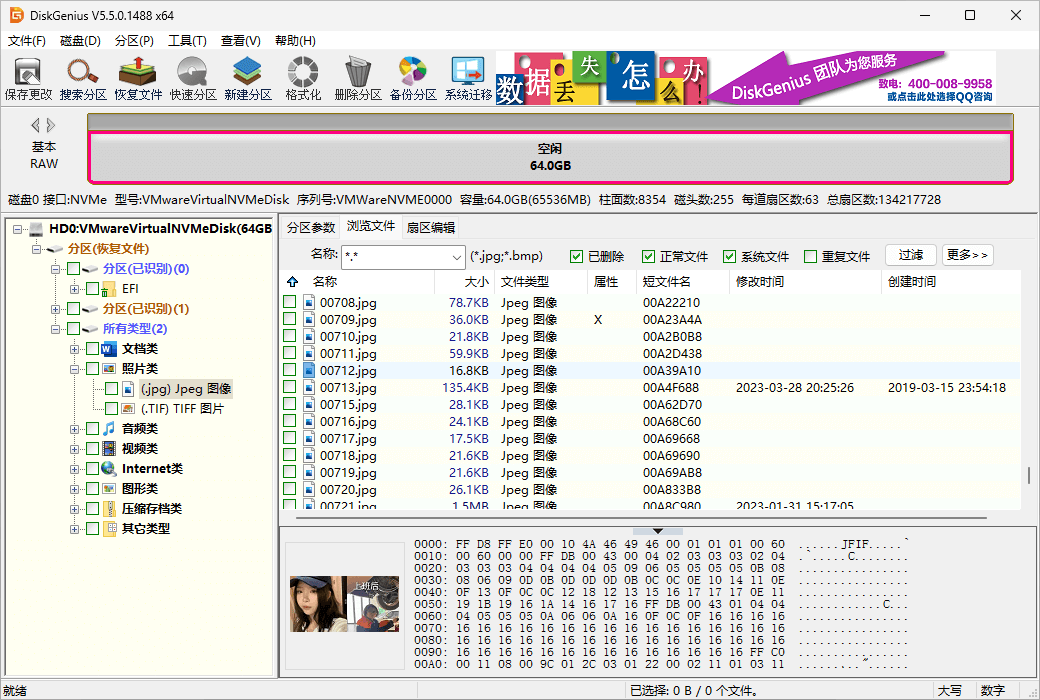
Preview your own files before actually recovering data, what you see is what you get, clear and concise; Double click on documents, images, videos, audios, texts, PDFs, etc. to view file content and accurately predict recovery effects.
DiskGenius supports virtual RAID reassembly, which allows for file and partition recovery just like operating a regular disk after reassembly. The virtual RAID constructed is read-only to prevent accidental damage to the original disk and data.
Without running a virtual machine system, virtual disk files can be loaded directly, and after loading, data recovery can be performed just like operating a regular disk. Supports virtual disk file formats for virtual machines such as VMware, Virtual PC, and VirtualBox.
DiskGenius can help you create a WinCE boot disk for emergency data recovery situations, such as system crashes and inability to start, or system disk data loss, making it safe and convenient.
It integrates powerful hexadecimal text editing and disk editing functions, such as sector positioning, sector copying, sector filling, data interpretation, editing any sector, importing and exporting sector data, etc., which can help professionals with manual data recovery.
Supports file recovery, partition recovery, partition management, and data backup for various file systems such as NTFS, FAT32, FAT16, FAT12, exFAT, EXT4, EXT3, and EXT2.
Partition management
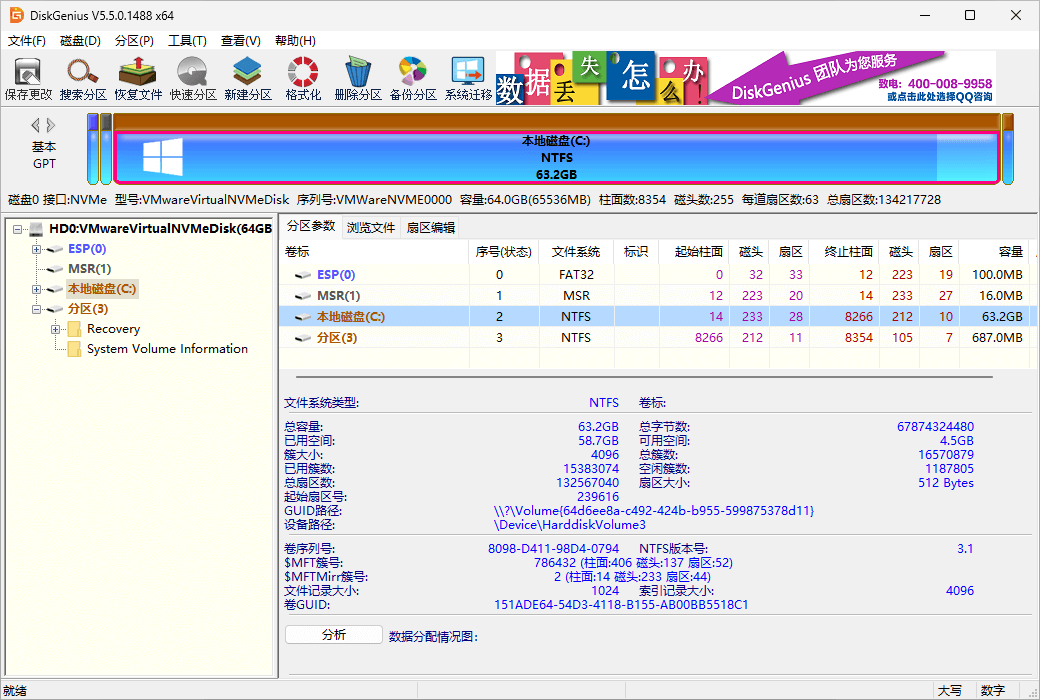
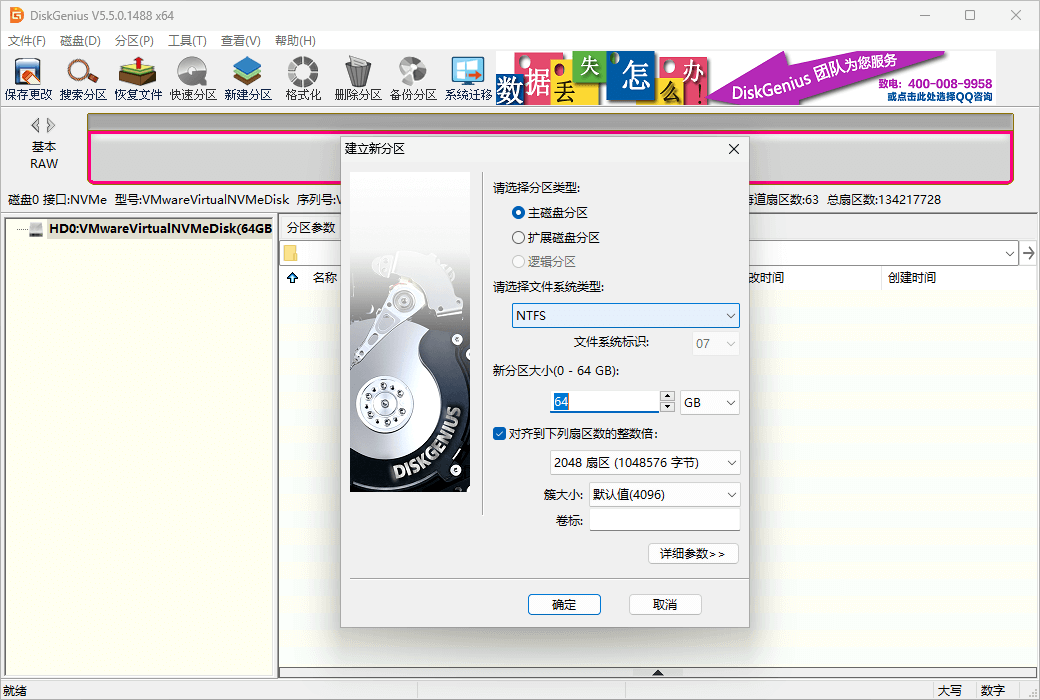
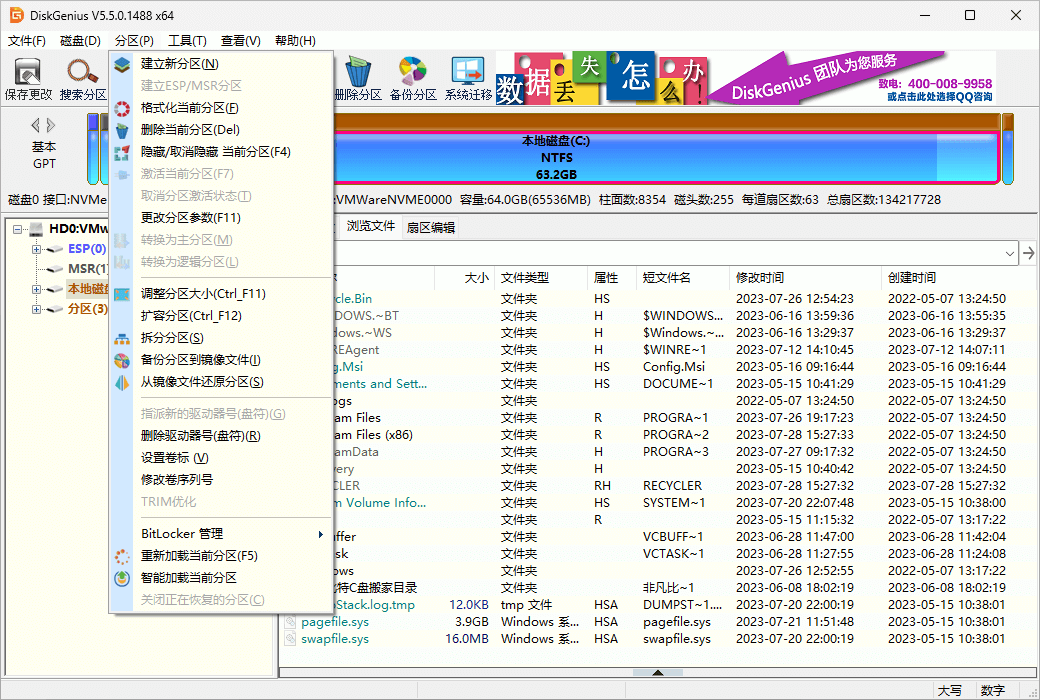
DiskGenius is a classic hard disk partitioning tool that is comprehensive, secure, and reliable. In addition to basic functions such as creating partitions, deleting partitions, formatting partitions, hiding partitions, and assigning drive letters, DiskGenius also provides more advanced features such as fast partitioning, lossless resizing of partitions, and backup and recovery of partition tables. Supports GPT partition format and EXT4 file system.
Backup and restore
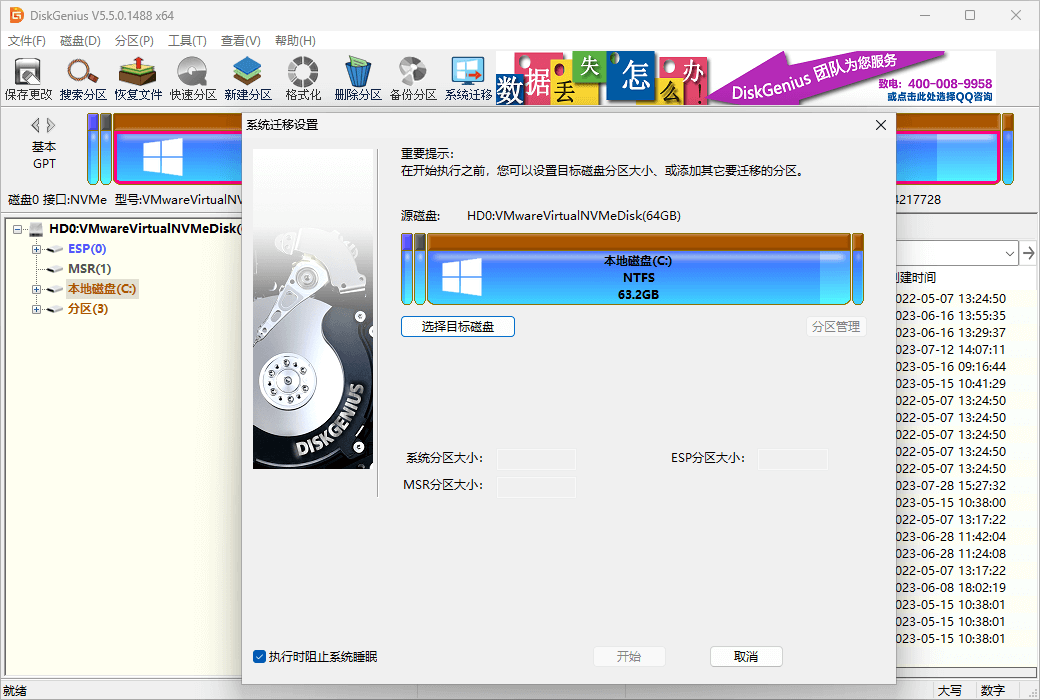
DiskGenius is also a powerful backup software that allows for easy backup or cloning of hard drives or partitions. Safe and reliable, it is a hard disk partition backup software with a long history of development and a large number of users in China; Comprehensive functionality, supporting incremental backup, multi-point restore, hot backup, system backup, and many other features.
More features
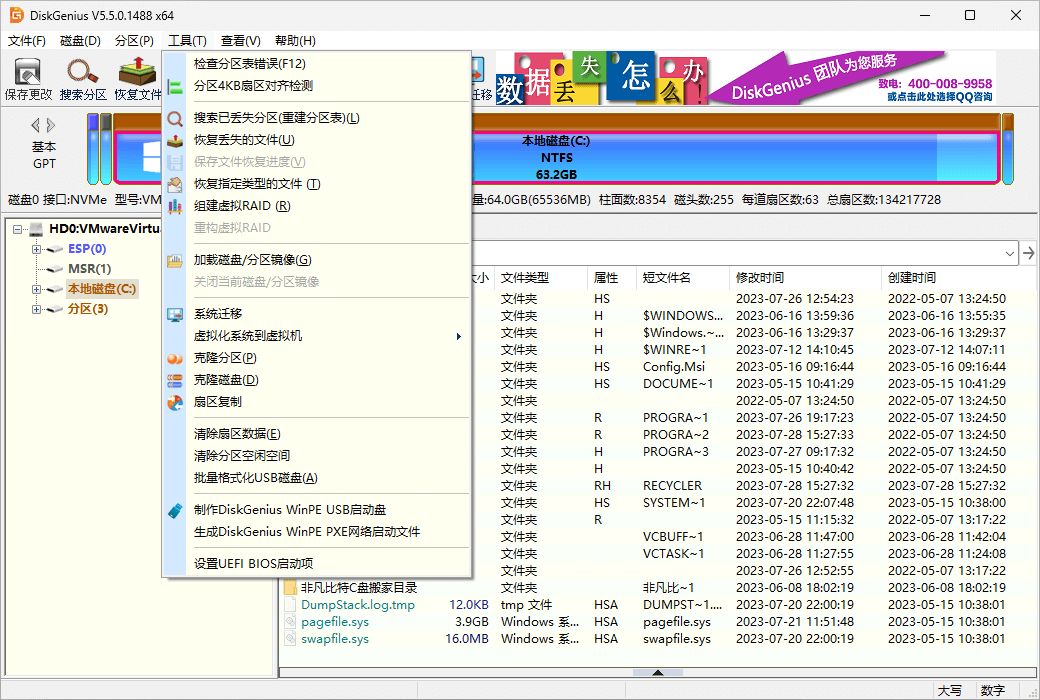
DiskGenius also provides many practical and convenient features: fast partitioning, integer partitioning, partition table error checking and repair, bad lane detection and repair, permanent file deletion, virtual hard disks and dynamic disks, creating PE boot disks, etc.
Version comparison
DiskGenius comes in three versions: free, standard, and professional.
Official Website:https://www.diskgenius.cn/
Download Center:https://diskgenius.apsgo.cn
Shipping Time: Shipment is processed manually online.
Operating Platform: Windows
Interface Language: Supports simplified and traditional Chinese interface display.
Update Instructions: The manufacturer promises lifetime updates for one purchase.
Trial Before Purchase: Free trial available before purchase.
How to Receive the Product: After purchase, the activation information will be sent to the email address used for the order via email, and the corresponding product activation code can be viewed in the personal center, My Orders.
Number of Devices: License: 1 device, no device replacement allowed. Purchase of an encryption key: The encryption key can be inserted into any computer to use the software.
Changing Computers: Uninstall on the original computer and activate on the new computer.
Activation Guide:https://www.diskgenius.cn/help/register.php
Special Instructions: To be added.
References:https://www.eassos.cn/dg/buynow.php

Any question

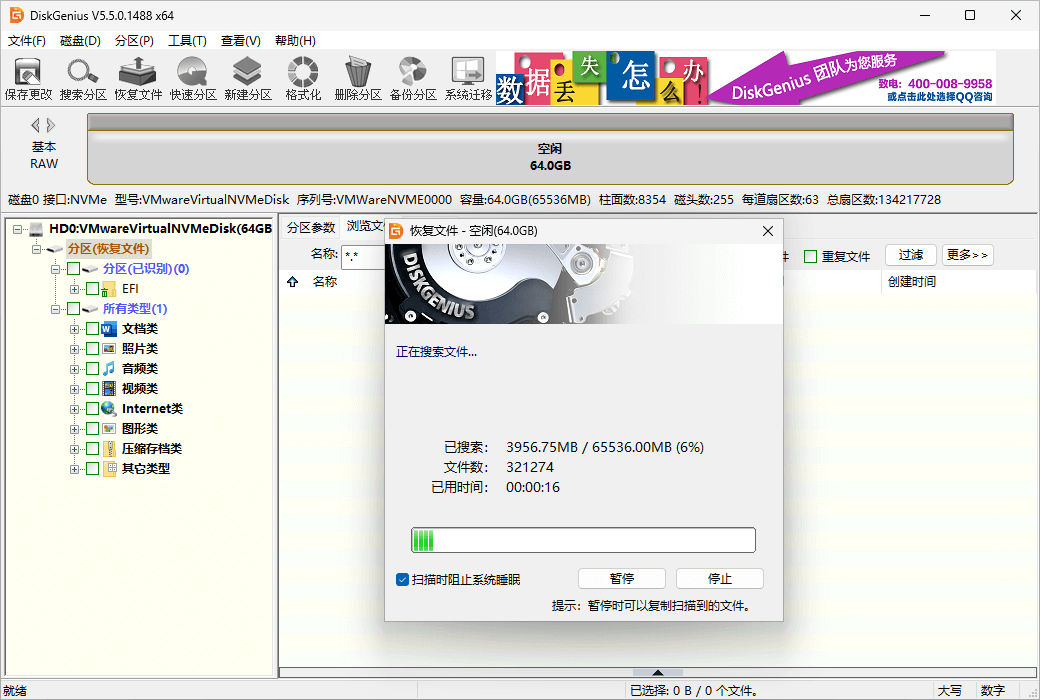
After setting the recovery options and clicking the "Start" button, DiskGenius software begins scanning the data in the hard disk or partition. First, a scanning window will pop up, as shown below:
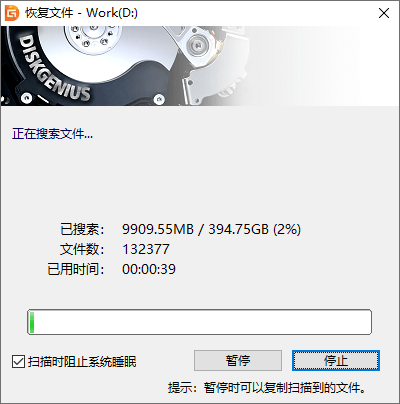
The scanning window allows you to pause or stop the scan at any time
In the scanning window, "Searching" indicates the size of the storage space that has been searched and its percentage of the total search space; "Number of Files" indicates the number of files that have been searched; "Elapsed Time" indicates the time that has been spent scanning. The progress bar below graphically represents the progress of the search.
At the bottom are two buttons, "Pause" and "Stop". You can pause the scan and then view and preview the files that have been scanned. If all the files that need to be recovered have been found and can be previewed correctly, you can stop scanning; if you are not satisfied with the current scanning results, you can continue scanning.